Approving & Rejecting Timesheets
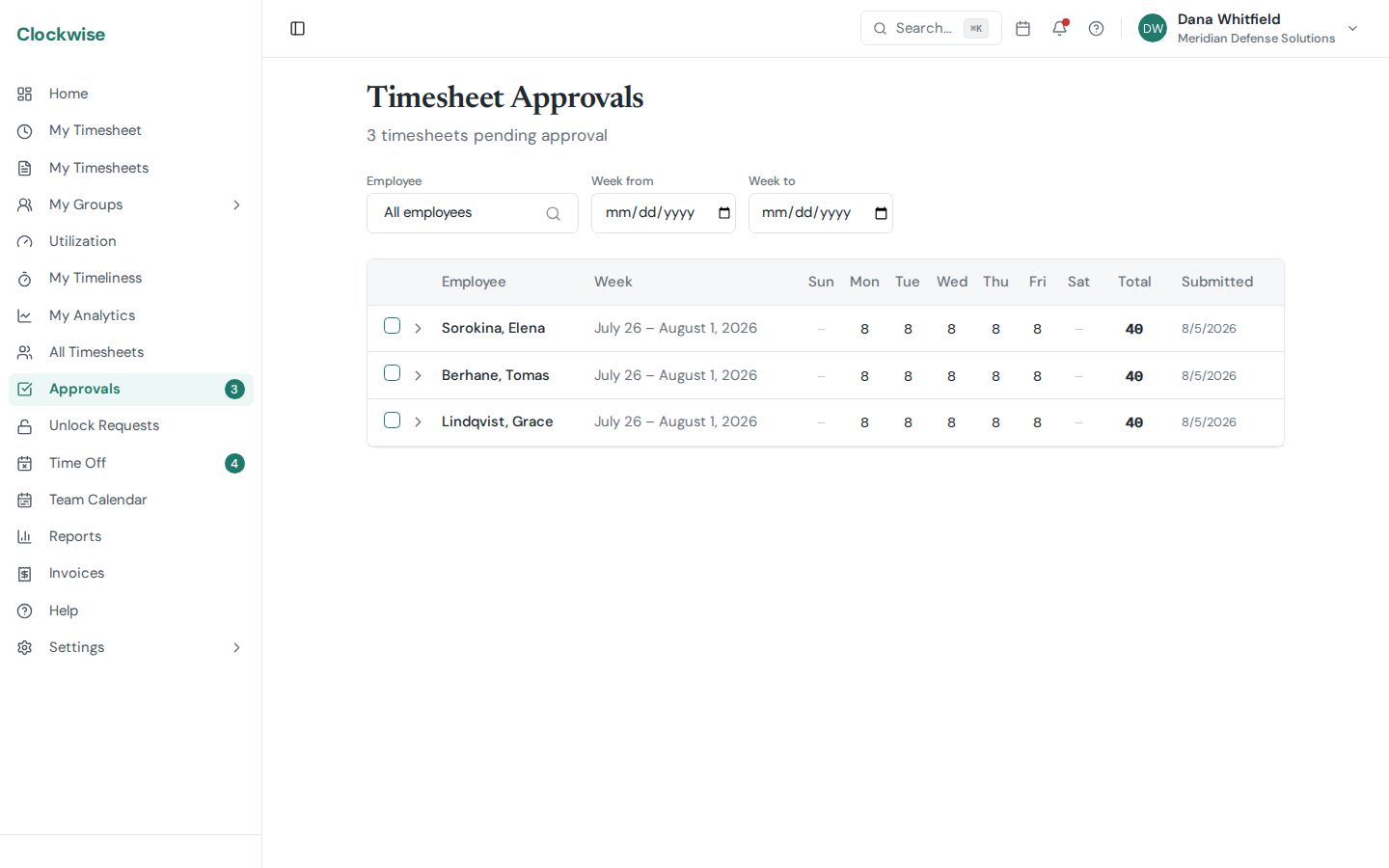
If you are a designated approver for a group, submitted timesheets from that group's members will appear in your approval queue.
Reviewing a Timesheet
From the Approvals page, you'll see a list of submitted timesheets. Click a timesheet to expand its details and see the full breakdown of hours by charge code and day, including any notes the employee added.
You must expand and view the timesheet details before the Approve button becomes active. This ensures you've actually reviewed the hours before approving.
Approving
Click Approve to confirm the timesheet. The status changes to Approved and the hours become available for payroll and reporting.
Rejecting
Click Reject to send the timesheet back for corrections. You must provide a rejection reason — this is required so the employee knows what to fix. The employee will see your reason on their timesheet detail page.
Admin Override
Admins can approve or reject timesheets even if they are not the designated approver for that group. A confirmation dialog will appear to make sure this override is intentional.