Managing Contractors
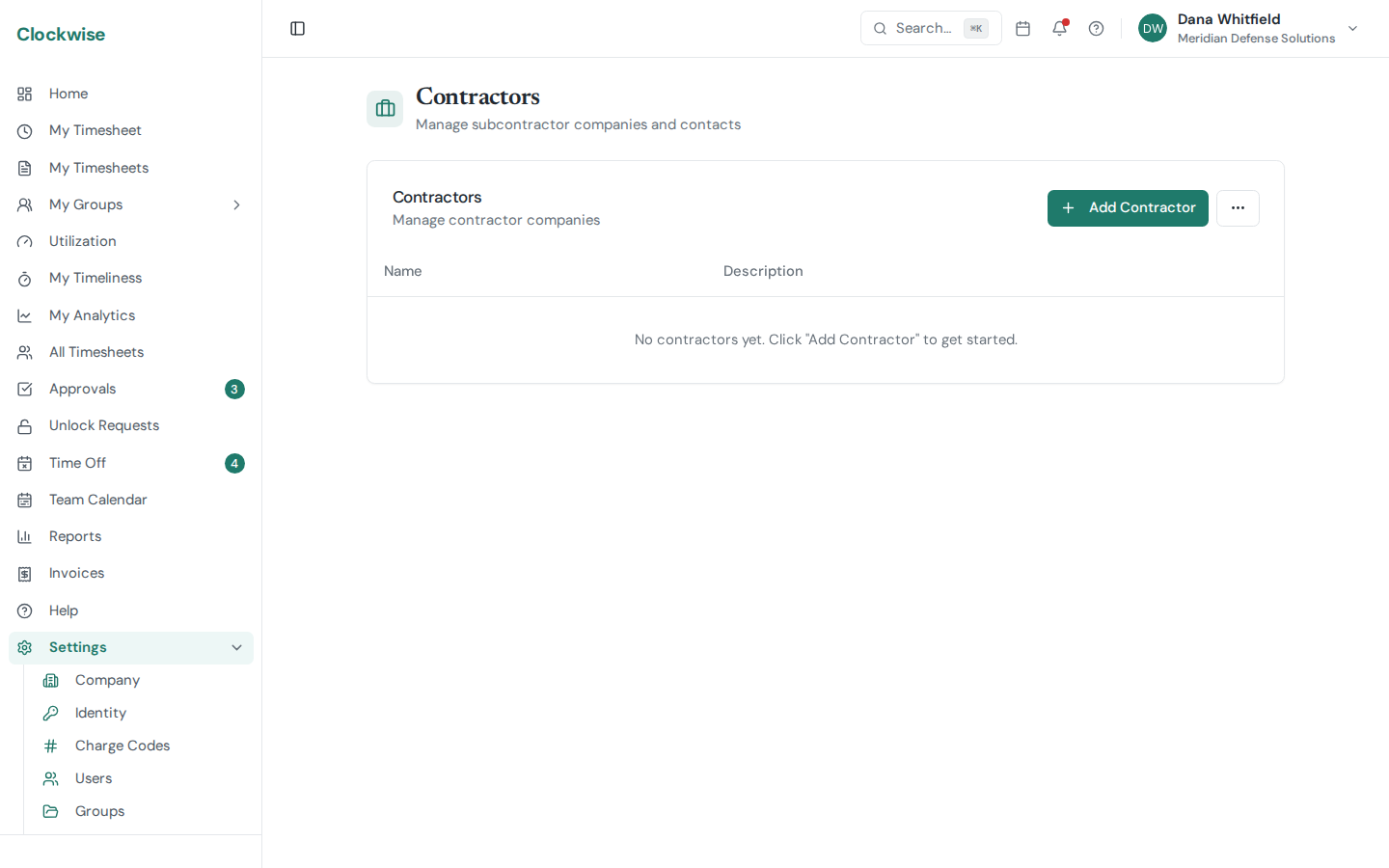
Clockwise tracks contractor companies separately from individual employees.
Contractor Companies
Go to Settings > Contractors to manage contractor organizations. Each entry represents a company (e.g., "Acme Consulting"), not an individual person.
Retiring a Contractor
Open the contractor and click Delete. Clockwise refuses the deletion while anyone is still assigned to that company or it is still linked to an account — reassign those people and unlink the accounts first. The dialog names exactly who is blocking it.
Deleting is a retirement, not an erasure: hours already booked against the company stay intact, so past reports and subcontractor invoices still show which firm the work belonged to. The company simply stops appearing in the contractor list, exports, and the user matcher.
Viewing and Restoring Deleted Contractors
Deleted companies are still there, just hidden. On Settings > Contractors, open the ⋯ menu and choose Show deleted to list them alongside the active ones, marked with a Deleted badge.
Click into a deleted company to see its details, then click Restore to make it active again. A restored company reappears everywhere it had disappeared from and becomes editable.
One case is refused: if you have since created a new active company with the same name, restoring is blocked so you don't end up with two identical vendor names. Rename one of them first.
Assigning Contractors
When adding or editing a user, set their Employment Type to "Contractor" and select the contractor company they belong to. This lets you:
Employees vs. Contractors
Both types use Clockwise the same way — they fill out timesheets, request time off, and follow the same approval workflow. The distinction is primarily for reporting, invoicing, and organizational purposes.