Filling Out Your Timesheet
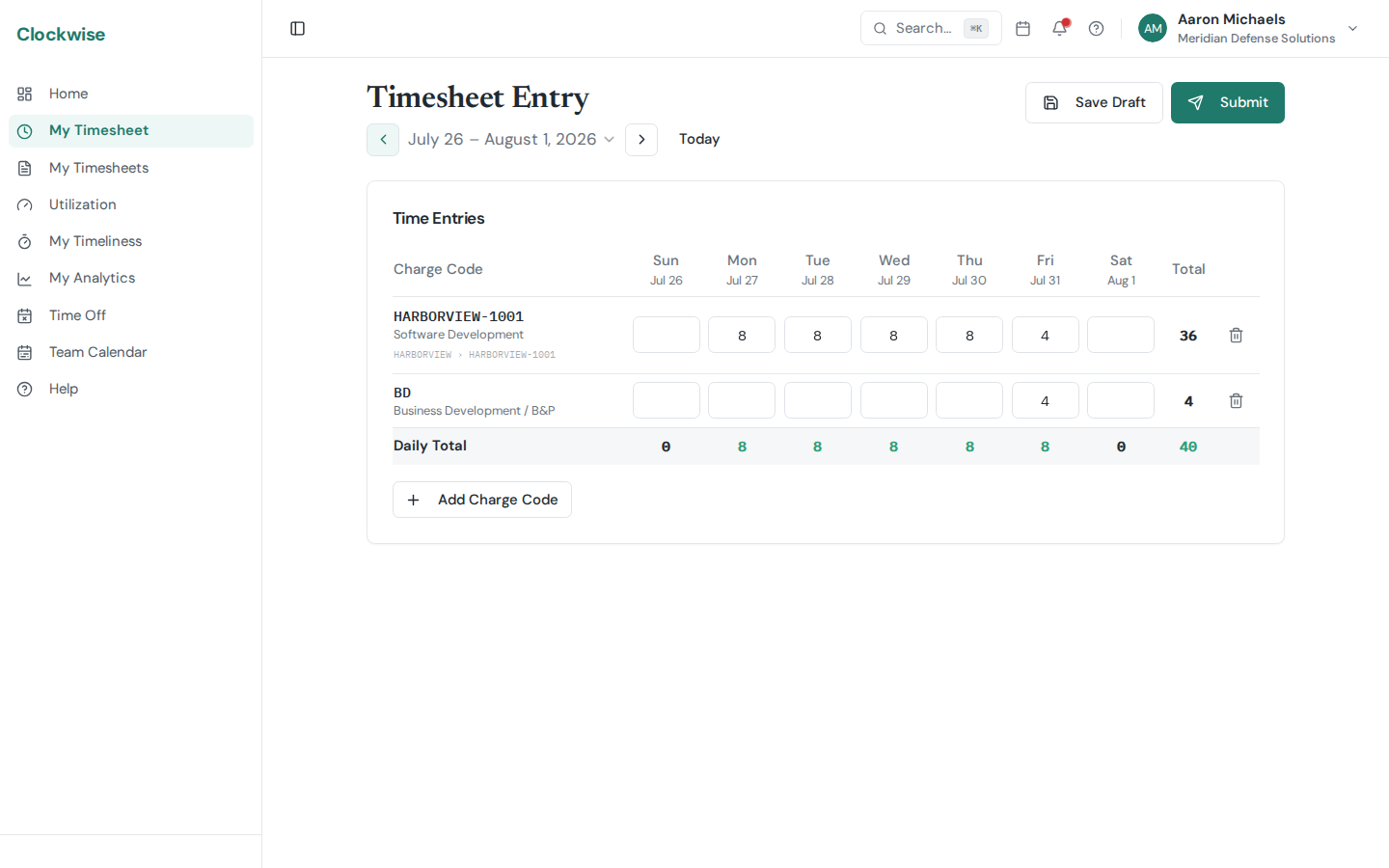
Your timesheet is a weekly grid where rows are charge codes and columns are days. Here's how to use it effectively.
Adding Charge Codes
Click Add Charge Code at the bottom of your timesheet to pick a project or leave type. You can only select charge codes that have been assigned to you by an admin. Once added, a new row appears and you can type hours into each day's cell.
Entering Hours
Click any cell and type the number of hours worked. A few rules apply:
Editing Previously Saved Hours
If you change hours that were already saved, Clockwise will ask you to provide an edit reason explaining the change. This creates an audit trail for managers and admins.
Daily and Weekly Totals
The bottom row shows your daily totals across all charge codes. The rightmost column shows your weekly total per charge code. If your company sets a minimum number of hours per timesheet, you won't be able to submit until your total reaches it. If you were hired or left partway through the period, that minimum is automatically reduced to cover only the days you were employed.
Notes
You can add optional notes to individual time entries. These are visible to your approver and can be helpful for explaining unusual hours or providing context.
Saving Your Work
Hours you type aren't stored until you click Save Draft (or Submit). If you try to leave the page — a sidebar link, the search bar, your browser's Back button, reloading the tab — while you have unsaved hours, Clockwise stops and asks first, and offers to save the draft for you before it lets you go. Logging out asks too, before it signs you out. Switching pay periods asks the same question, since loading another period reloads the grid.
If saving is blocked because a changed cell still needs an edit reason, Clockwise says so and keeps you on the page so you can add it.
Submitting
When your timesheet is complete, click Submit at the top. This locks the timesheet and sends it to your designated approver. You cannot edit a submitted timesheet — if you need changes, ask your approver to reject it back to you.
Employees can't submit a timesheet with no hours on it at all — every period needs something recorded, whether that's work, leave, a holiday, or an overhead code. 1099 contractors and subcontractors can, because a period with no tasking is a real answer for them. Submitting the empty timesheet is how you say "no hours this period" instead of leaving it looking like you simply haven't filed yet, and it stops the weekly unsubmitted-timesheet reminder. The daily missing-time reminder still goes out for any workday with no hours on it, submitted or not. You can only do this once the period has started — you can't close out a period in advance.
When to Enter Your Hours
Clockwise considers a day on time if hours were recorded for it by 10:00am Eastern on the next business day. Weekend and holiday dates are exempt, and correcting a day afterwards doesn’t make it late. The goal is to record time daily, not reconstruct it from memory at the end of the week — see Timeliness for how your on-time rate is tracked and where to view it.