Your Profile & Preferences
Open your profile from the user menu in the bottom of the sidebar. The page is split into a left-hand nav with two groups: Information and Settings.
Overview
Your work info: full name, email, role, company, employment type (W-2, 1099 Independent, Subcontractor), manager, location, and last login. If anyone lists you as their manager, a Direct reports row shows how many, with a link through to My Team. This section is read-only for everyone — even admins update these fields from the Users page (see Managing Users) rather than from a profile. If something's wrong, ask your admin to fix it.
Looking for your hours charts? Those moved off the profile into My Analytics in the sidebar.
Charge Codes
The Assigned charge codes section lists every code an admin has assigned to you, along with its optional start and end date. Below that, Available without an assignment lists global codes you can charge to without a specific assignment. If you're a 1099 or subcontractor this covers direct codes only — leave and indirect globals are for W-2 employees, and need an explicit assignment. If a code you need is missing from both lists, ask your admin.
Leave Balances
Read-only view of your leave balances by type for the current year — allocated, used, and remaining. Color-coded so depleted balances stand out.
Notifications
Toggle which channels deliver Clockwise messages to you:
If you toggle Slack on but get an error, it usually means either Slack isn't connected for the company yet or your email doesn't match a Slack member in that workspace.
Slack heads-up reminder
The company-wide missing-time reminder is the "you're late" notice — it goes out the morning after, at a time your admin sets. With Slack on, you can add your own earlier heads-up so you hear about a blank day before it's late. Pick one:
Both use the same time picker as the other reminders, on a 5-minute cadence.
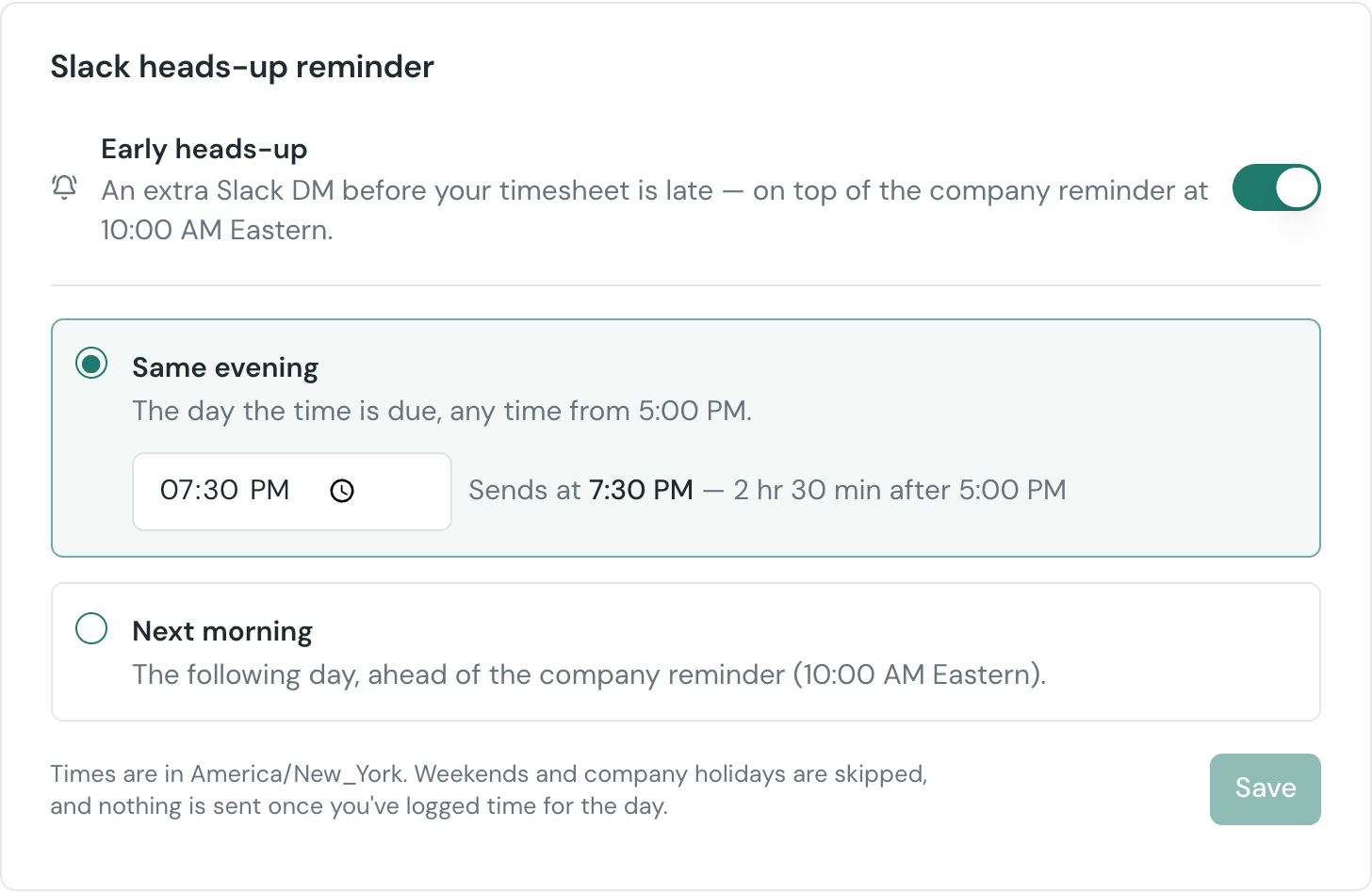
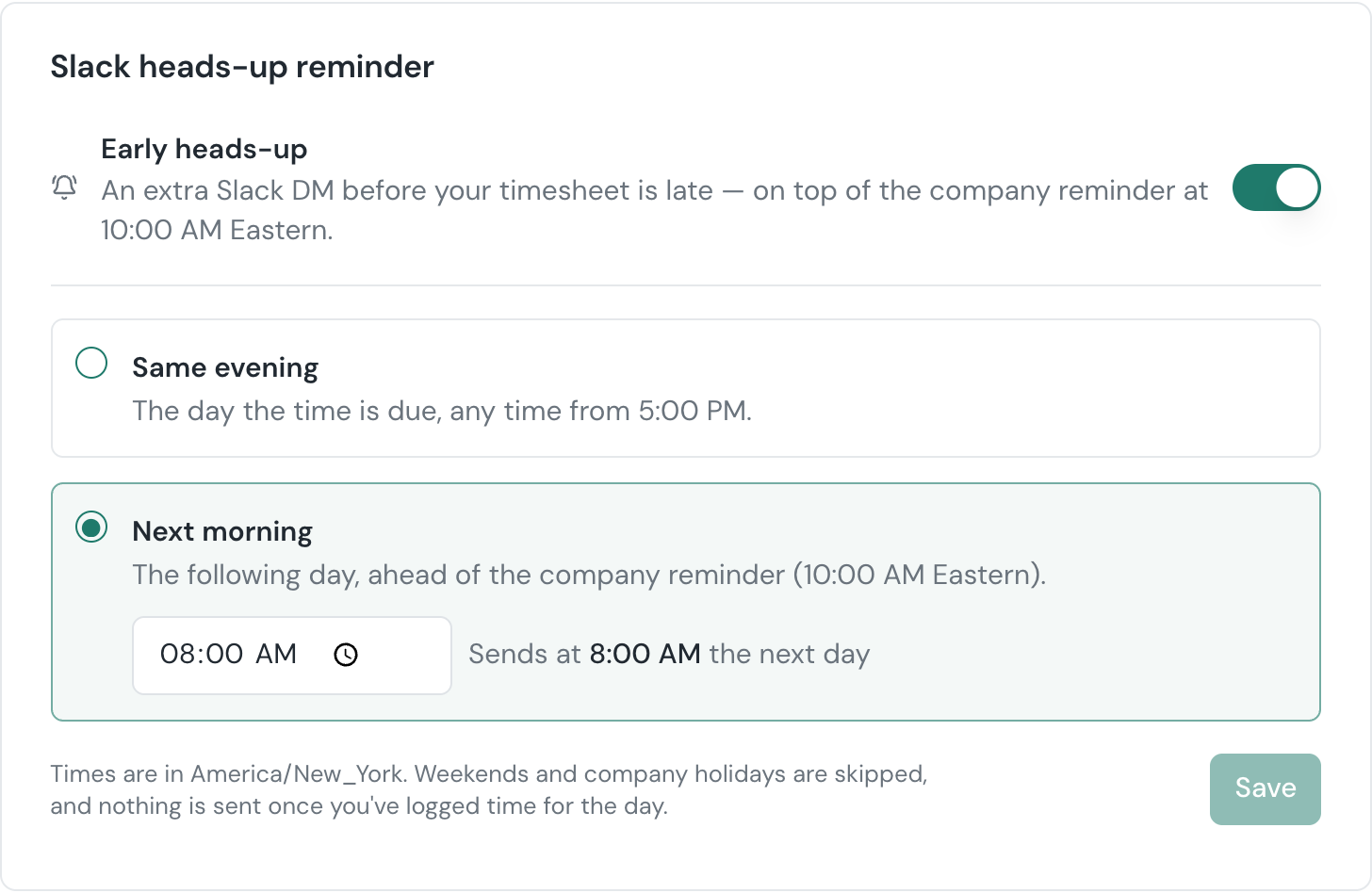
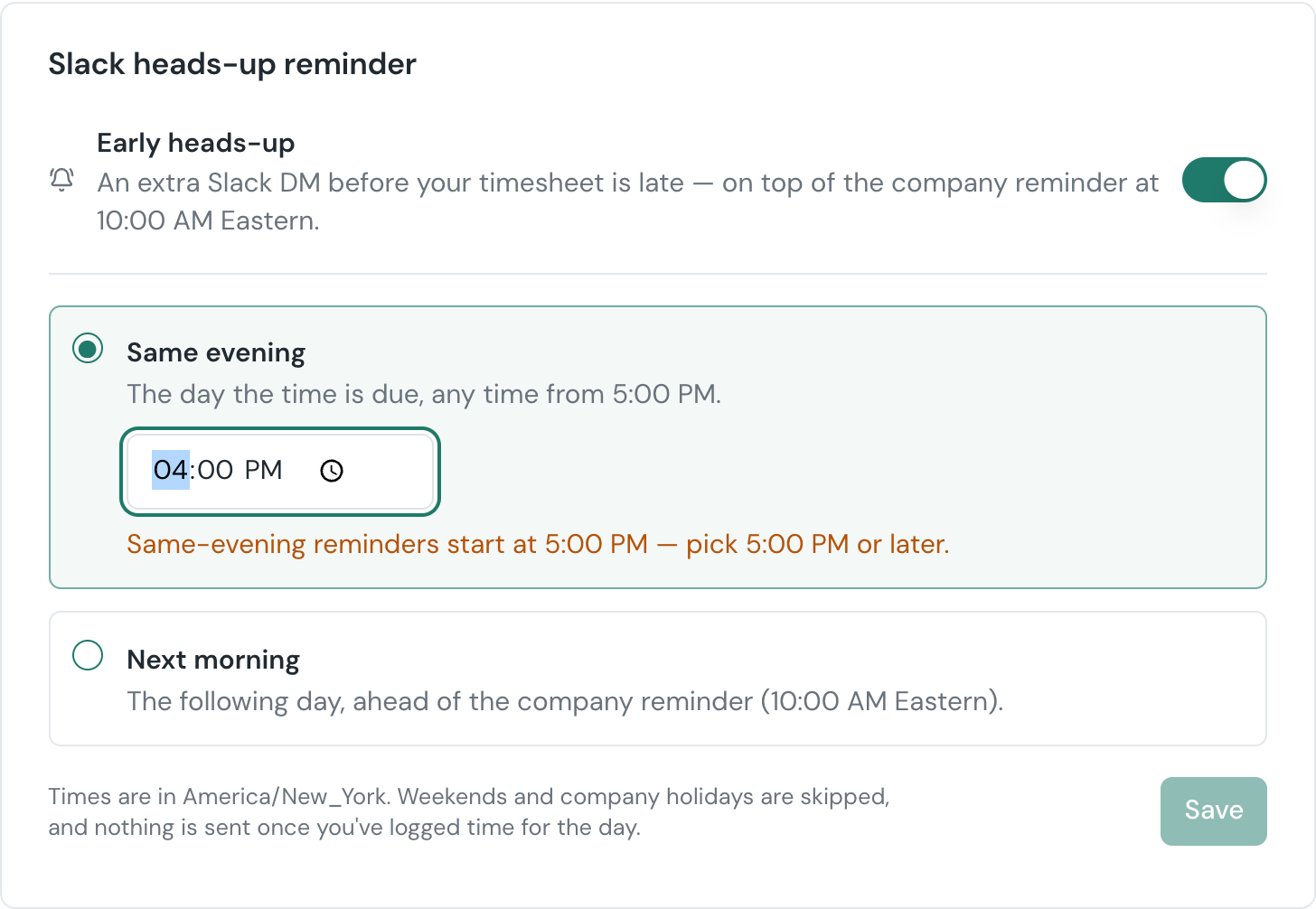
The heads-up is sent in addition to the company reminder, in your local timezone. It skips weekends and company holidays, stays quiet once you've logged time for the day, and — for the next-morning option — steps aside if it would land in the same five minutes as the company reminder. Turning Slack off pauses it; your schedule is kept for when you turn Slack back on.