Managing Holidays
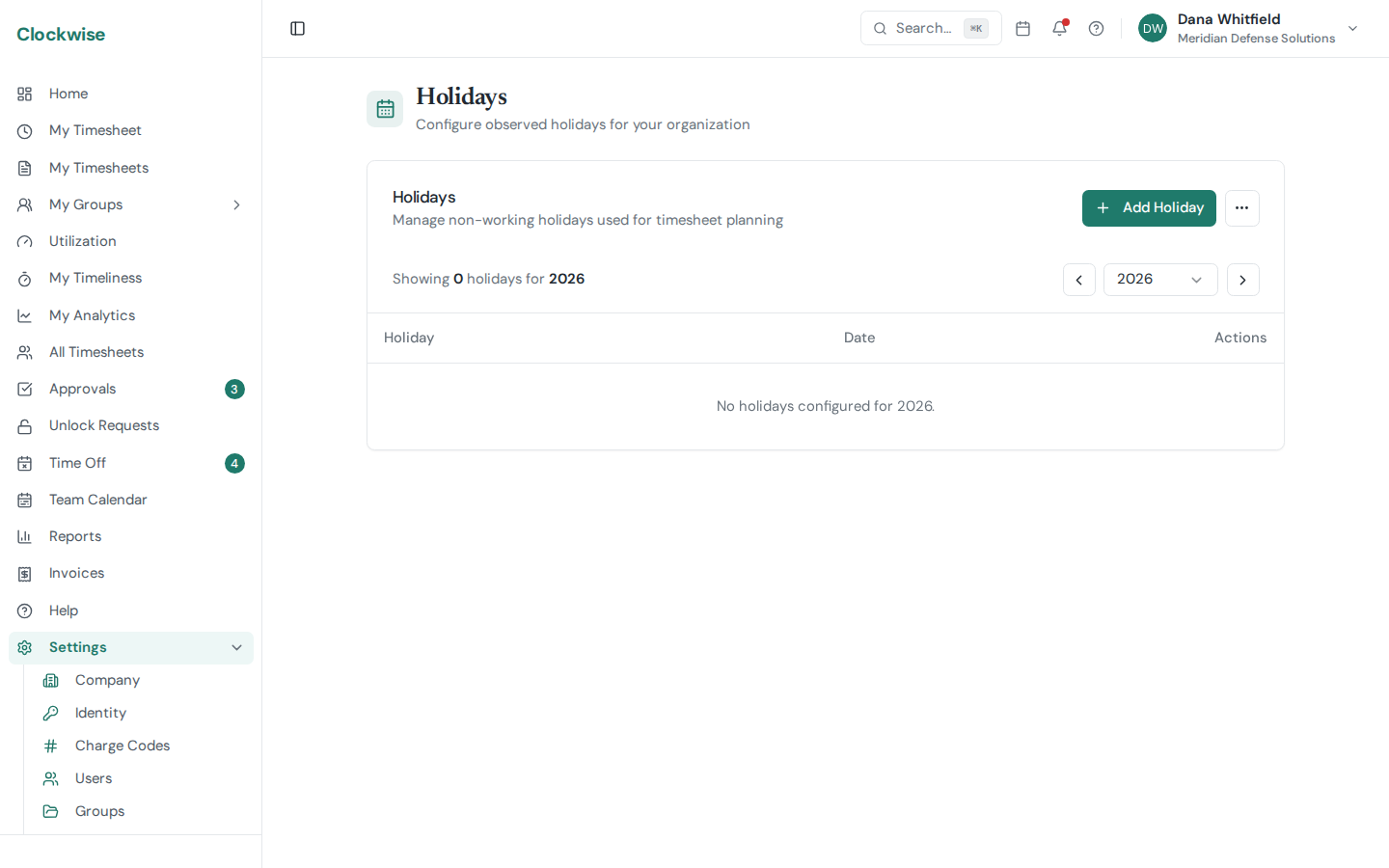
Holidays define non-working days for your company. They appear on timesheets and the Team Calendar.
Adding Holidays
Go to Settings > Holidays. You can add holidays in two ways:
Manual Entry
Click Add Holiday, enter a name and date. Repeat for each holiday.
Bulk US Holidays
Click Add US Holidays to import all standard US federal holidays for the selected year. Clockwise automatically applies observed-date rules:
Year Navigation
Use the year selector to view and manage holidays for different years. You'll typically want to add next year's holidays before the current year ends.
Effect on Timesheets
When an employee logs hours on a holiday, the day is highlighted on their timesheet as a visual reminder. Holidays do not prevent hour entry — they simply flag the day so it can be reviewed.