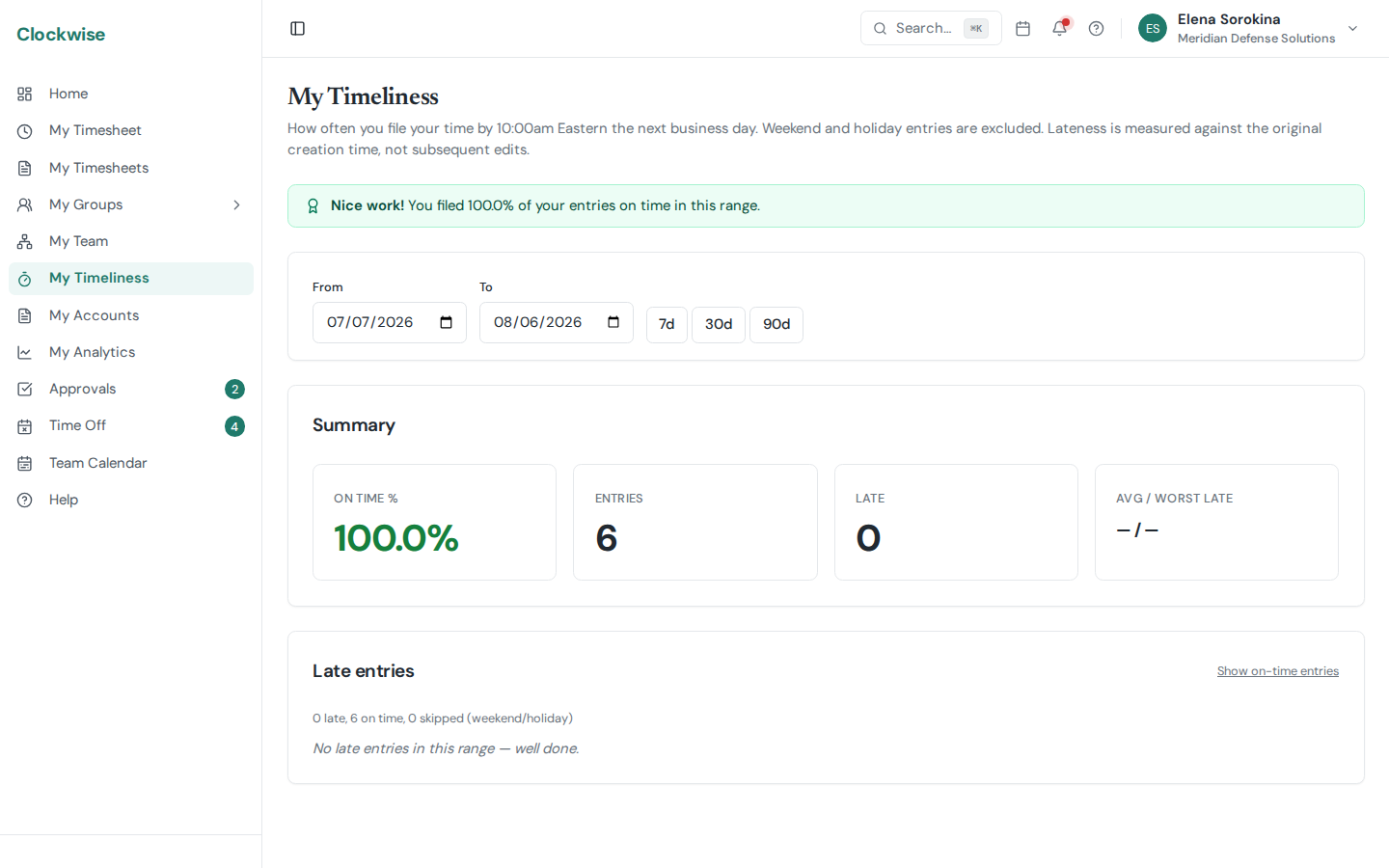
My Timeliness. How reliably each day was recorded by the next-business-day deadline.
Clockwise tracks how reliably you file your time so you and your managers can spot drift before it becomes an invoicing problem.
The Rule
Timeliness is measured one day at a time, not one charge-code line at a time. A day is on time if you had hours recorded for it by 10:00am Eastern on the next business day. A few details:
It's the day that's graded, so splitting a day across five charge codes doesn't count five times against you — and filing one busy day late costs you one day, not five.
Correcting a day later doesn't make it late. Clockwise checks what was on your timesheet when the deadline passed, so if you recorded Monday on Monday and then fixed a miskeyed charge code two weeks later, Monday still counts as on time.
Days whose hours changed after the deadline are counted separately as revised. Revised days don't reduce your on-time percentage — they're reported on their own so a day that was recorded and later corrected isn't confused with a day that was never recorded at all. If hours were *added* after the deadline, the added hours are shown too.
Weekends and company holidays are exempt (status: *skipped*) and don't count either way. A day with no hours on it at all isn't counted either.
The deadline rolls forward across weekends and holidays — e.g., Friday's time isn't late until Monday at 10am ET (or Tuesday if Monday is a holiday).
Imported time (TSheets, Gusto, etc.) counts alongside hours you typed yourself.
Where You'll See It
Three personal touchpoints, plus aggregated views for managers and admins:
Dashboard card — A "Timeliness (last 30 days)" card on your home page: your own on-time %, plus a line for your reports and for each group you approve if you have any. Above 90% you get a green recognition banner; below 80% you get a red heads-up nudge. See Dashboard.
My Timeliness in the sidebar — A full personal page with summary stats, a date-range picker (7d / 30d / 90d / custom), and a list of your late and revised days: hours recorded, how many of those were in by the deadline, when you first filed, the deadline, and how late. Each day expands to the charge-code lines behind it, with anything written after the deadline flagged. Toggle "Show all days" to see the clean ones too.
My Team → Timeliness and My Groups → Timeliness — Manager and approver views with on-time rates for your reports or group members. Click any row to expand the per-day detail.
Admins, owners, and finance also get a company-wide Timeliness tab on the Reports page that covers every employee.
How to Improve Your Rate
Record daily. Pop the timesheet open at the end of each workday rather than rebuilding the week on Friday afternoon.
Set a reminder. Slack or email reminders can be configured on your Profile — and admins can enable the daily missing-time reminder on Settings → Notifications.
Use mobile. The phone-friendly timesheet view (Mobile) makes a one-minute entry feasible from anywhere.
Why It Matters
Timely entries keep customer invoicing on schedule and align with FAR Part 31 / DCAA recordkeeping expectations. The company's full policy is in Timekeeping Policy — your admin publishes that, and you'll see an acknowledgement modal the first time a new version is published.